
-
Getting Started
-
Garmin Devices
- Garmin Device Firmware Guide
- Check Garmin Device Firmware
- Set up and Connect Garmin Index2 Scale
- Screen Control on Garmin Wearables
- How to charge Garmin devices best
- Wearable and Device ID Management
- Setup: Prepare Wearable Devices
- Compatible Garmin Devices
- Garmin Timezone & Time
- Wifi Capabilities and Restrictions of Garmin Devices
-
Setup
-
Manage
-
Data Collection
- Collect Data: Synchronization Types
- Collect Data: Tablet Sync (multi-sync) with "Fitrockr Hub (Multi-Sync)" app
- Collect Data: Smartphone Sync (single-sync) with Garmin Connect app
- Collect Data: Overview
- Collect Data: Smartphone Sync (single-sync) with Fitrockr app
- Collect Data: Sync via USB cable to Laptop
- Collect Data: Smartphone Sync (single-sync) with Omron Blood Pressure Monitors
- Apple Health and Google Health Connect
- Withings
- Wifi Capabilities and Restrictions of Garmin Devices
- Wearable Sync Methods and Frequencies
- Samsung Health
- Oura
- Polar
- Collect Data: Menstrual Cycle Tracking
-
Track
-
Analyze
- Analyze: Overview
- Analyze: Data Export
- Analyze: Standard Reports
- Analyze: Sleep Analysis
- Analyze: Vitality Report
- Analyze: 6 Minute Walk Test
- Analyze: Body Battery
- Analyze: HRV
- Analyze: Activities
- Analyze: Live Streaming
- Analyze: Analytics Studio
- Analyze: Share
- Setup: Onboarding & First Steps
- Analyze: Data Export (Accelerometer & Gyroscope)
-
Other
-
Trouble Shooting
-
Definitions
-
FAQ
- How to use HR monitor strap
- What happens when a Garmin device runs full?
- How to read Accelerometer json output file
- How to get access to Dexcom data
- Which Garmin devices support Wifi sync
- How to free up and reclaim licenses
- How to do a complete data export
- How to enable notifications on the wearable
- Why are some values longer than the given timeframe
- How to pair the Garmin Index Sleep Monitor
- How to get GPS data
- How to check if background sync is enabled
-
Blog
How to pair the Garmin Index Sleep Monitor
The Garmin Index Sleep Monitor is a special device that comes without a screen.
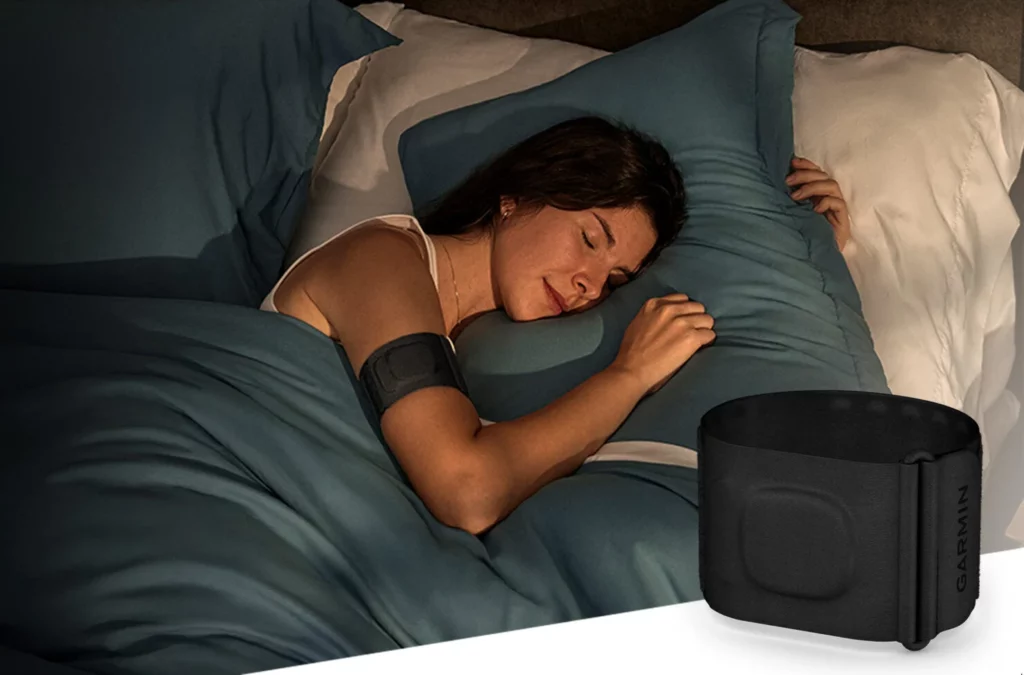
To pair the Garmin Index Sleep Monitor with the Fitrockr app, follow these steps:
Initial pairing after unboxing
1. Open the Fitrockr app and select “Connect Garmin”.
2. Plug the device into a power source with the USB cable (Activating the Sleep Band).
3. The device status LED flashes Purple in active pairing mode. The device is in pairing mode for 5 minutes.
TIP: To manually enter pairing mode, tap the device firmly and rapidly up to 15 times until the LED flashes Purple (Module Status LED).
4. Select the device for pairing once it is found and displayed in the Fitrockr app.
5. Confirm pairing in the Fitrockr app.
Re-pairing
If you have already paired your sleep band before, but the sleep band is not sending data, you can follow below steps to retry the pairing process between the sleep band and the Fitrockr app.
1. Remove your sleep band from the Fitrockr app.
2. Remove your sleep band from the Bluetooth® settings on your phone.
3. Open the Fitrockr app and select “Connect Garmin”.
4. Plug the sleep band module into a USB charging port.
5. The device LED flashes Green (Module Status LED).
6. Unplug the sleep band module from the USB charging port.
7. The device vibrates, and the device LED flashes White.
8. Tap the module firmly and rapidly up to 15 times.
9. The device LED flashes Purple.
NOTE: After 5 minutes of inactivity, the device LED flashes Red indicating that pairing mode is closed. If necessary, repeat above steps to initiate pairing mode.
10. Select the device for pairing once it is found and displayed in the Fitrockr app.
11. Confirm pairing in the Fitrockr app.