-
Getting Started
-
Garmin Devices
- Garmin Device Firmware Guide
- Check Garmin Device Firmware
- Set up and Connect Garmin Index2 Scale
- Screen Control on Garmin Wearables
- How to charge Garmin devices best
- Wearable and Device ID Management
- Setup: Prepare Wearable Devices
- Compatible Garmin Devices
- Garmin Timezone & Time
- Wifi Capabilities and Restrictions of Garmin Devices
-
Setup
-
Manage
-
Data Collection
- Collect Data: Synchronization Types
- Collect Data: Tablet Sync (multi-sync) with "Fitrockr Hub (Multi-Sync)" app
- Collect Data: Smartphone Sync (single-sync) with Garmin Connect app
- Collect Data: Overview
- Collect Data: Smartphone Sync (single-sync) with Fitrockr app
- Collect Data: Sync via USB cable to Laptop
- Collect Data: Smartphone Sync (single-sync) with Omron Blood Pressure Monitors
- Apple Health and Google Health Connect
- Withings
- Wifi Capabilities and Restrictions of Garmin Devices
- Wearable Sync Methods and Frequencies
- Samsung Health
- Oura
- Polar
- Collect Data: Menstrual Cycle Tracking
-
Track
-
Analyze
- Analyze: Overview
- Analyze: Data Export
- Analyze: Standard Reports
- Analyze: Sleep Analysis
- Analyze: Vitality Report
- Analyze: 6 Minute Walk Test
- Analyze: Body Battery
- Analyze: HRV
- Analyze: Activities
- Analyze: Live Streaming
- Analyze: Analytics Studio
- Analyze: Share
- Setup: Onboarding & First Steps
- Analyze: Data Export (Accelerometer & Gyroscope)
-
Other
-
Trouble Shooting
-
Definitions
-
FAQ
- How to use HR monitor strap
- What happens when a Garmin device runs full?
- How to read Accelerometer json output file
- How to get access to Dexcom data
- Which Garmin devices support Wifi sync
- How to free up and reclaim licenses
- How to do a complete data export
- How to enable notifications on the wearable
- Why are some values longer than the given timeframe
- How to pair the Garmin Index Sleep Monitor
- How to get GPS data
- How to check if background sync is enabled
- What does influence sleep measurement and recording
- Why do HR and BBI measurements not fully align?
- What apps are needed to use Fitrockr?
-
Blog
Track: Data Entry
The “Self-Reporting Data” features allows authorized staff (administrators, trainers, medical staff) and participants to manually log data for various types such as “Blood Pressure”, “Weight Measurements”, “Food”, etc.
Admin View
1. Go to TRACK > DATA ENTRY
2. Select the data type to log.
3. Select a user to whom the data should be associated.
4. Fill in the fields and click save.
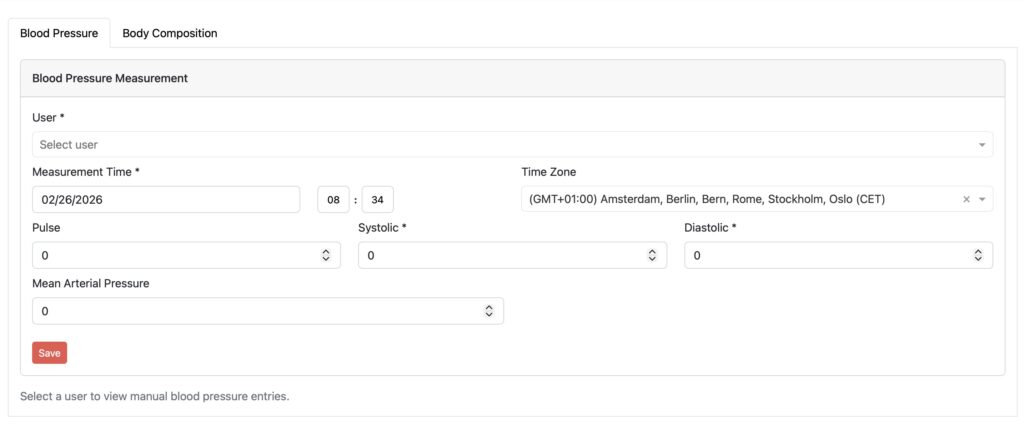
The available data types (e.g. Blood Pressure, Weight, etc.) are highly configurable by us. Let us know which data types you are missing.
Participant View
Data can also be logged by participants in the Fitrockr app.
1. Go to TASKS > DATA ENTRY
2. Select the data type to log.
4. Fill in the fields and click save.
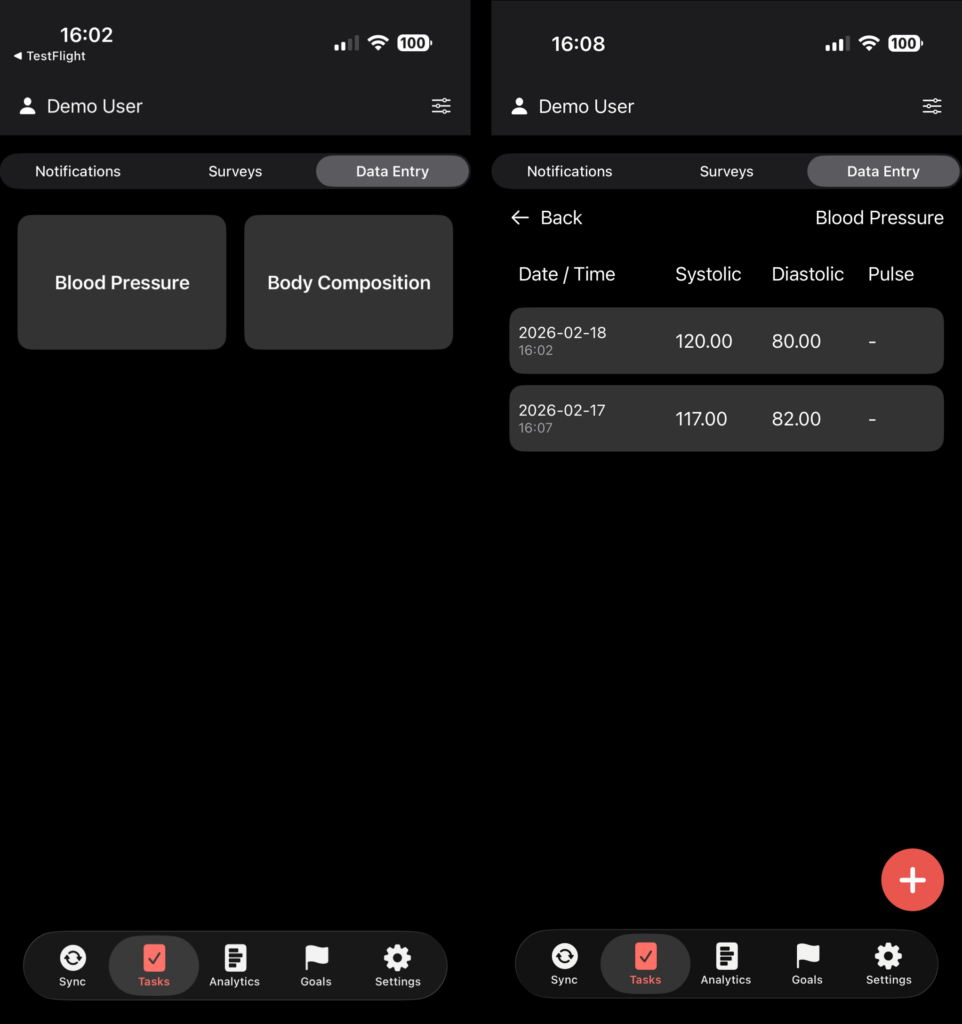
All manually logged data can be exported and analyzed in the Fitrockr Research & Control Center.
You need the “Self-Reporting Health Data” or “Food Tracking & Nutrition Analysis” add-on module to use this feature.
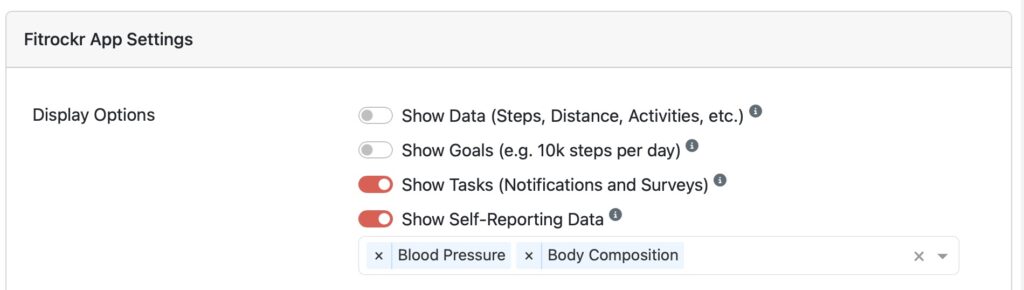
Self-reported data entry is automatically available for administrators at TRACK > DATA ENTRY.
The feature can also be made available to participants in the Fitrockr mobile app. The feature can be activated in the project settings (SETUP > PROJECTS). Select “Show Self-Reporting Data” and select which data should be logged by the participants.