
-
Getting Started
-
Garmin Devices
- Garmin Device Firmware Guide
- Check Garmin Device Firmware
- Set up and Connect Garmin Index2 Scale
- Screen Control on Garmin Wearables
- How to charge Garmin devices best
- Wearable and Device ID Management
- Setup: Prepare Wearable Devices
- Compatible Garmin Devices
- Garmin Timezone & Time
- Wifi Capabilities and Restrictions of Garmin Devices
-
Setup
-
Manage
-
Data Collection
- Collect Data: Synchronization Types
- Collect Data: Tablet Sync (multi-sync) with "Fitrockr Hub (Multi-Sync)" app
- Collect Data: Smartphone Sync (single-sync) with Garmin Connect app
- Collect Data: Overview
- Collect Data: Smartphone Sync (single-sync) with Fitrockr app
- Collect Data: Sync via USB cable to Laptop
- Collect Data: Smartphone Sync (single-sync) with Omron Blood Pressure Monitors
- Apple Health and Google Health Connect
- Withings
- Wifi Capabilities and Restrictions of Garmin Devices
- Wearable Sync Methods and Frequencies
- Samsung Health
- Oura
- Polar
- Collect Data: Menstrual Cycle Tracking
-
Track
-
Analyze
- Analyze: Overview
- Analyze: Data Export
- Analyze: Standard Reports
- Analyze: Sleep Analysis
- Analyze: Vitality Report
- Analyze: 6 Minute Walk Test
- Analyze: Body Battery
- Analyze: HRV
- Analyze: Activities
- Analyze: Live Streaming
- Analyze: Analytics Studio
- Analyze: Share
- Setup: Onboarding & First Steps
- Analyze: Data Export (Accelerometer & Gyroscope)
-
Other
-
Trouble Shooting
-
Definitions
-
FAQ
- How to use HR monitor strap
- What happens when a Garmin device runs full?
- How to read Accelerometer json output file
- How to get access to Dexcom data
- Which Garmin devices support Wifi sync
- How to free up and reclaim licenses
- How to do a complete data export
- How to enable notifications on the wearable
- Why are some values longer than the given timeframe
- How to pair the Garmin Index Sleep Monitor
- How to get GPS data
- How to check if background sync is enabled
-
Blog
Mass User Registration & Setup
About
Setting up hundreds or thousands of users can be a challenge. This article explains how this process can be accomplished easily.
Option A) Mass User Creation by Administrator
In this option, administrator mass creates all users and distributes individual join-codes.
1. Go to MANAGE > USERS
2. Click on MASS IMPORT
3. Upload spreadsheet with all users. This will mass create all users.
4. Contact Fitrockr Support to get a spreadsheet of all individual join-codes.
Once join-codes have been obtained, administrator needs to distribute the join-codes to the participants, e.g. by email.
Option B) Self-Creation by User
In this option, administrator requests users to self-create their user accounts.
1. Go to SETUP > PROJECTS
2. Edit the project
3. Scroll to the section FITROCKR APP SETTINGS
4. Select how users should self-register.
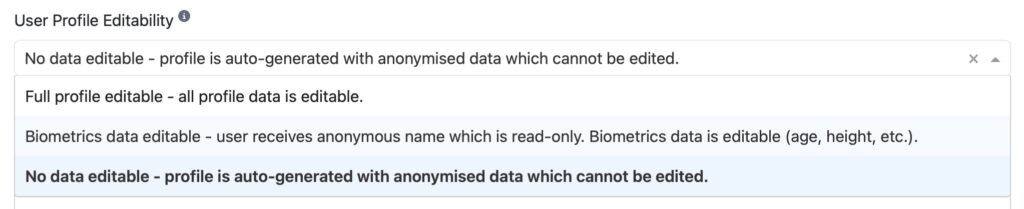
▶︎ Full profile editable: users are requested to fill in all data (name, email, age, weight, etc.) when registering.
▶︎ Biometrics data editable: users are only requested to fill in biometric (age, weight, etc.) when registering. Name and email will be randomly auto-generated by the system.
▶︎ No data editable: users do not need to fill in any data when registering. All data will be randomly auto-generated by the system.
5. Go to MANAGE > USERS
6. Click on USER SELF-JOIN
7. Share the self-registration QR-Code with all users. Ask users to scan this code with the Fitrockr Sync app. The app will then register the user based on the given project setting (full profile, biometrics only, no data).