-
Getting Started
-
Wearable
- Garmin Device Firmware Guide
- Check Garmin Device Firmware
- Set up and Connect Garmin Index2 Scale
- Screen Control on Garmin Wearables
- How to charge Garmin devices best
- Wearable and Device ID Management
- Setup: Prepare Wearable Devices
- Compatible Garmin Devices
- Garmin Timezone & Time
- Wifi Capabilities and Restrictions of Garmin Devices
- Screenless bands for blinded data collection
-
Setup
-
Manage
-
Data Collection
- Collect Data: Synchronization Types
- Collect Data: Tablet Sync (multi-sync) with "Fitrockr Hub (Multi-Sync)" app
- Collect Data: Smartphone Sync (single-sync) with Garmin Connect app
- Collect Data: Overview
- Collect Data: Smartphone Sync (single-sync) with Fitrockr app
- Collect Data: Sync via USB cable to Laptop
- Collect Data: Smartphone Sync (single-sync) with Omron Blood Pressure Monitors
- Apple Health and Google Health Connect
- Withings
- Wifi Capabilities and Restrictions of Garmin Devices
- Wearable Sync Methods and Frequencies
- Samsung Health
- Oura
- Polar
- Collect Data: Menstrual Cycle Tracking
- Screenless bands for blinded data collection
- Show all articles (1) Collapse Articles
-
Track
-
Analyze
- Analyze: Overview
- Analyze: Data Export
- Analyze: Standard Reports
- Analyze: Sleep Analysis
- Analyze: Vitality Report
- Analyze: 6 Minute Walk Test
- Analyze: Body Battery
- Analyze: HRV
- Analyze: Activities
- Analyze: Live Streaming
- Analyze: Analytics Studio
- Analyze: Share
- Setup: Onboarding & First Steps
- Analyze: Data Export (Accelerometer & Gyroscope)
- Setup: Accelerometer & Gyroscope Data Collection
- Analyze: Health Advisory
- Analyze: Drowsiness Detection
- Show all articles (2) Collapse Articles
-
Other
-
Trouble Shooting
-
Definitions
-
FAQ
- How to use HR monitor strap
- What happens when a Garmin device runs full?
- How to read Accelerometer json output file
- How to get access to Dexcom data
- Which Garmin devices support Wifi sync
- How to free up and reclaim licenses
- How to do a complete data export
- How to enable notifications on the wearable
- Why are some values longer than the given timeframe
- How to pair the Garmin Index Sleep Monitor
- How to get GPS data
- How to check if background sync is enabled
- What does influence sleep measurement and recording
- Why do HR and BBI measurements not fully align?
- What apps are needed to use Fitrockr?
- How to pair and operate the screen-free Garmin CIRQA band?
- Is the Garmin CIRQA band suitable for raw accelerometer signal data collection?
- What data is stored and processed at a Fitness Challenge?
- Show all articles (3) Collapse Articles
-
Blog
How to get GPS data
There are two ways how to obtain GPS location data via the Fitrockr platform:
(1) Activity GPS location tracking via a wearable (default feature)
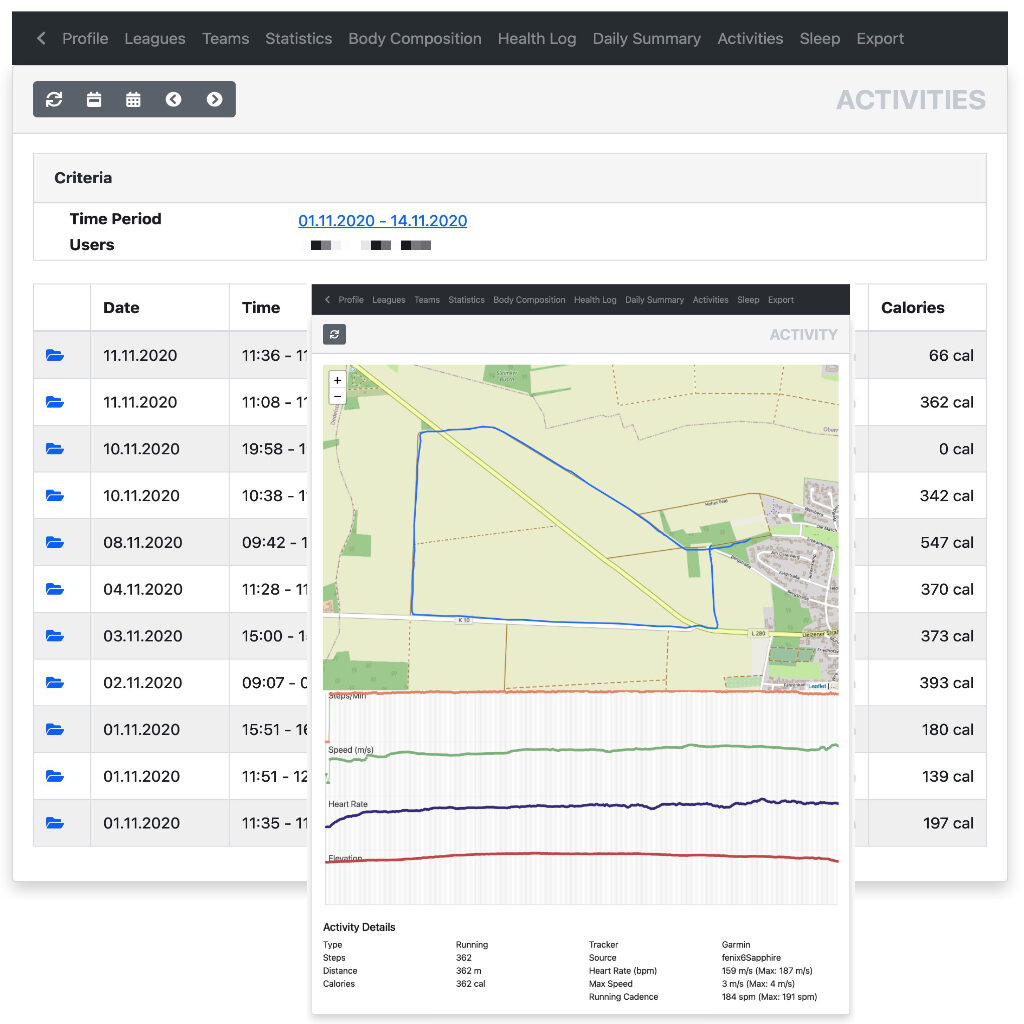
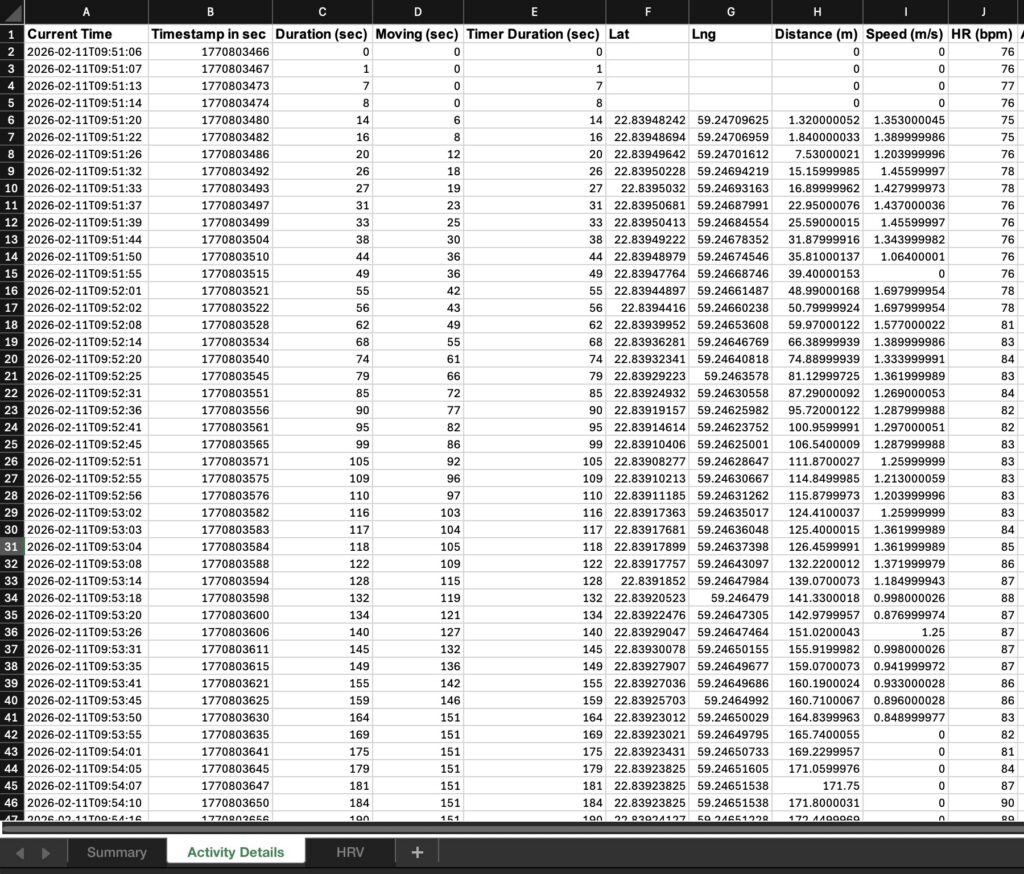
Fitrockr automatically imports GPS information during recorded activities from wearables. Please note that wearables do not record all-day GPS data. To save battery life, wearables only activate GPS during recorded activity types that include location information (e.g. running).
Activity GPS location data can be accessed and downloaded at ANALYZE > ACTIVITIES.
(2) 24/7 GPS location tracking via the Fitrockr app (add-on feature)
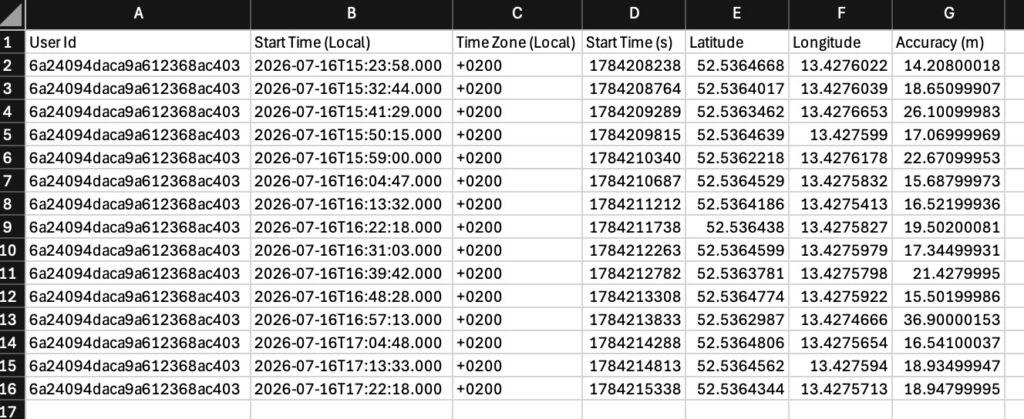
The Fitrockr mobile app (not the wearable!) can record and collect all-day 24/7 GPS location data. This requires the “GPS Location Tracking” add-on module.
You can activate GPS data tracking in the project settings (see ENABLE GPS DATA).
Android GPS Location Tracking
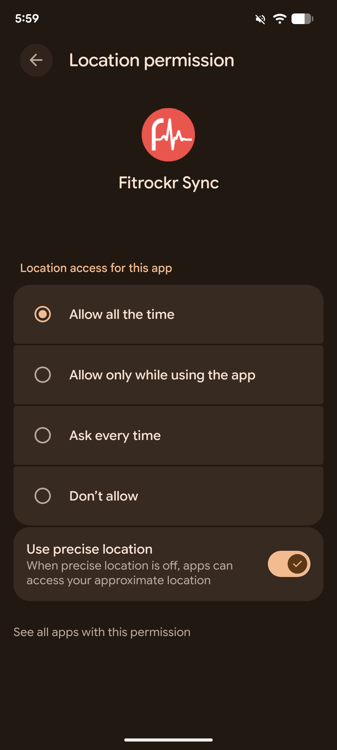
On Android phones, users will be asked to open the Android settings menu and allow GPS location tracking.
Once enabled, the phone will record GPS location at a 10-15 minutes frequency.
The recorded location data is synced to the server approx. once per hour if connection permits.
A user can stop GPS recording as follows:
- Go to Android settings and disable GPS tracking or
- Log out of Fitrockr app or
- Delete Fitrockr app
Select
OPEN SETTINGS
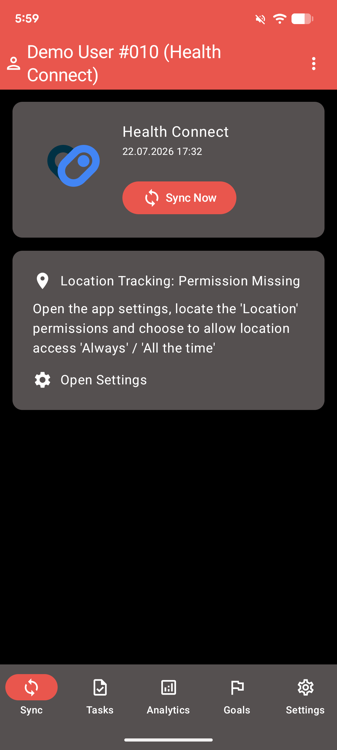
Select
ALLOW ALL THE TIME
iOS GPS Location Tracking
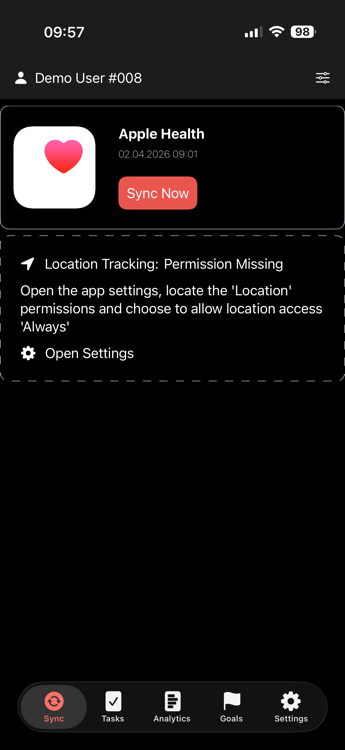
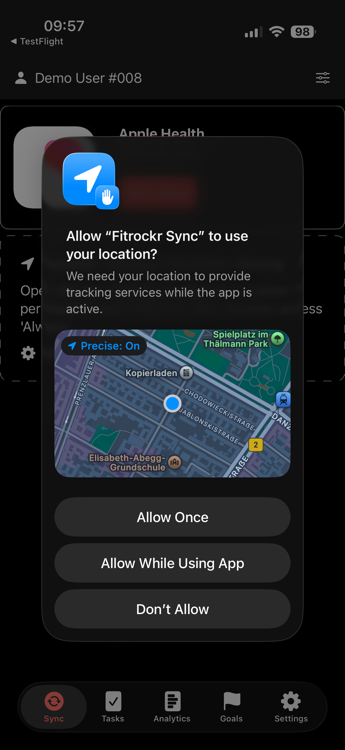
On iPhones, users will be asked to confirm location tracking (alternatively, it can be allowed in iOS settings menu).
Once enabled, the phone will record GPS location whenever there is a “significant” change in location detected. It is Apple undisclosed built-in logic what “significant” means.
iOS phones cannot record GPS data at a configurable interval like Android. Apple does not allow such a configuration.
The recorded location data is synced to the server approx. once per hour if connection permits.
A user can stop GPS recording as follows:
- Go to iOS settings and disable GPS tracking or
- Log out of Fitrockr app or
- Delete Fitrockr app
Select
OPEN SETTINGS
Select
ALLOW WHILE USING APP
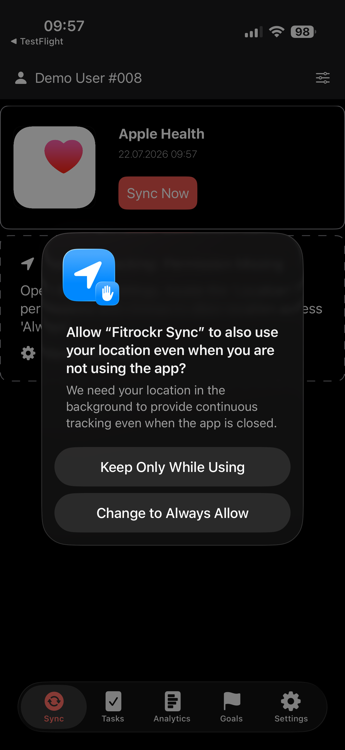
Select CHANGE TO ALWAYS ALLOW
All-day GPS location data can be accessed and downloaded at ANALYZE > DATA EXPORT > TRACKED LOCATION.