-
Getting Started
-
Wearable
- Garmin Device Firmware Guide
- Check Garmin Device Firmware
- Set up and Connect Garmin Index2 Scale
- Screen Control on Garmin Wearables
- How to charge Garmin devices best
- Wearable and Device ID Management
- Setup: Prepare Wearable Devices
- Compatible Garmin Devices
- Garmin Timezone & Time
- Wifi Capabilities and Restrictions of Garmin Devices
- Screenless bands for blinded data collection
-
Setup
-
Manage
-
Data Collection
- Collect Data: Synchronization Types
- Collect Data: Tablet Sync (multi-sync) with "Fitrockr Hub (Multi-Sync)" app
- Collect Data: Smartphone Sync (single-sync) with Garmin Connect app
- Collect Data: Overview
- Collect Data: Smartphone Sync (single-sync) with Fitrockr app
- Collect Data: Sync via USB cable to Laptop
- Collect Data: Smartphone Sync (single-sync) with Omron Blood Pressure Monitors
- Apple Health and Google Health Connect
- Withings
- Wifi Capabilities and Restrictions of Garmin Devices
- Wearable Sync Methods and Frequencies
- Samsung Health
- Oura
- Polar
- Collect Data: Menstrual Cycle Tracking
- Screenless bands for blinded data collection
- Show all articles (1) Collapse Articles
-
Track
-
Analyze
- Analyze: Overview
- Analyze: Data Export
- Analyze: Standard Reports
- Analyze: Sleep Analysis
- Analyze: Vitality Report
- Analyze: 6 Minute Walk Test
- Analyze: Body Battery
- Analyze: HRV
- Analyze: Activities
- Analyze: Live Streaming
- Analyze: Analytics Studio
- Analyze: Share
- Setup: Onboarding & First Steps
- Analyze: Data Export (Accelerometer & Gyroscope)
- Setup: Accelerometer & Gyroscope Data Collection
- Analyze: Health Advisory
- Analyze: Drowsiness Detection
- Show all articles (2) Collapse Articles
-
Other
-
Trouble Shooting
-
Definitions
-
FAQ
- How to use HR monitor strap
- What happens when a Garmin device runs full?
- How to read Accelerometer json output file
- How to get access to Dexcom data
- Which Garmin devices support Wifi sync
- How to free up and reclaim licenses
- How to do a complete data export
- How to enable notifications on the wearable
- Why are some values longer than the given timeframe
- How to pair the Garmin Index Sleep Monitor
- How to get GPS data
- How to check if background sync is enabled
- What does influence sleep measurement and recording
- Why do HR and BBI measurements not fully align?
- What apps are needed to use Fitrockr?
- How to pair and operate the screen-free Garmin CIRQA band?
- Is the Garmin CIRQA band suitable for raw accelerometer signal data collection?
- What data is stored and processed at a Fitness Challenge?
- Show all articles (3) Collapse Articles
-
Blog
Setup: Data Studio
Data Studio allows creating any data type or attribute to be collected on the platform. Each data type can be collected under TRACK > DATA ENTRY by authorized staff or if enabled, via the Fitrockr app by participants.
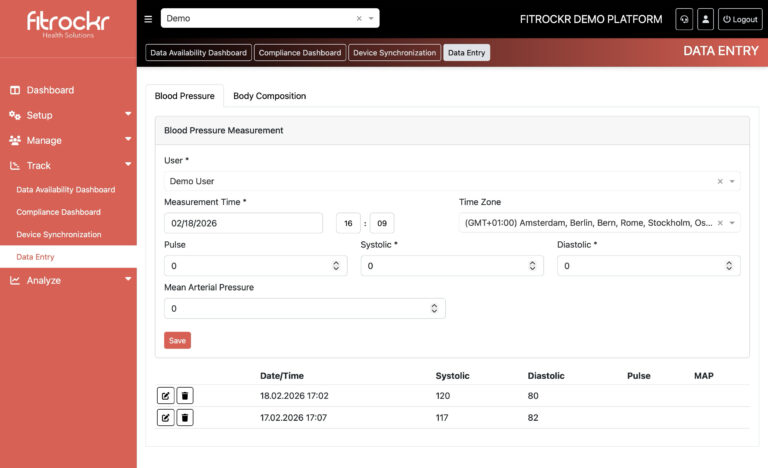
Data Collection Experience - Staff View
Data types are shown to authorized staff under TRACK > DATA ENTRY.
Data can be entered manually or imported via CSV files.
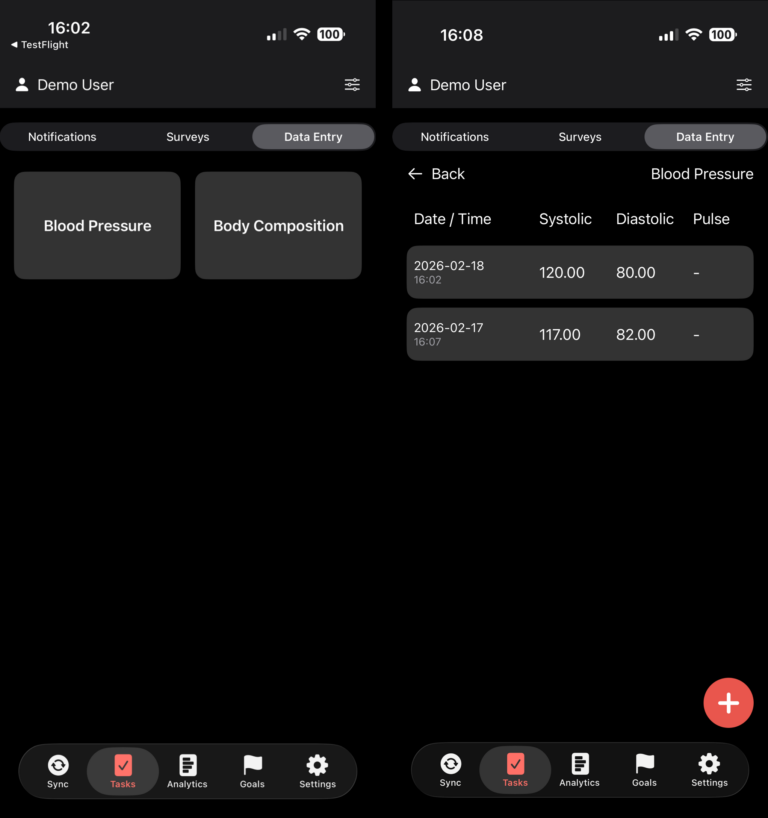
Data Collection Experience - Participant View
Data types are shown to users in the Fitrockr app if enabled in the project settings.
Configure Data Types - Administrator View
General Section
Name: title of data type.
Data Fields
Name: name of data field
Data Field Value Type: select type of field
Mandatory Data Field: determines whether the field must be filled.
Enable Description: displays a descriptive text along with the data field.
Primary Timestamp: every data type must have one primary timestamp (e.g. date/time of data entry) – either date field or date/time field. This is required later required to query and download data based on a timestamp.
Primary Timestamp
Example: Weight Measurement
Data Field: Weight (decimal number / mandatory)
If you just had a field “Weight” you would not be able to find the data entry as it lacks the date when the weight was measured. Therefore it requires a “primary timestamp”. In this case, for instance “Date of Measurement”. You configured data type would then look as follows:
Data Field: Weight (decimal number / mandatory)
Data Field: Date of Measurement (date / mandatory / primary timestamp)
Locked Configuration
As soon as the first data entry has been made to a data type, data type locks and can no longer be edited.
Analyze Data
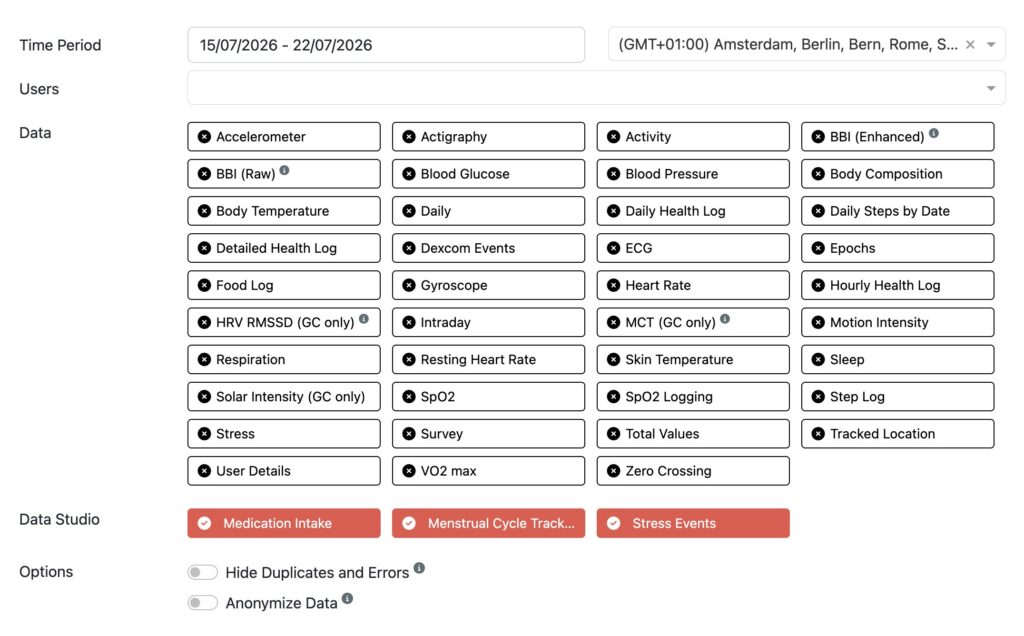
All data entries can be analyzed at ANALYZE > DATA EXPORT – see section called “Data Studio”.