-
Getting Started
-
Wearable
- Garmin Device Firmware Guide
- Check Garmin Device Firmware
- Set up and Connect Garmin Index2 Scale
- Screen Control on Garmin Wearables
- How to charge Garmin devices best
- Wearable and Device ID Management
- Setup: Prepare Wearable Devices
- Compatible Garmin Devices
- Garmin Timezone & Time
- Wifi Capabilities and Restrictions of Garmin Devices
- Screenless bands for blinded data collection
-
Setup
-
Manage
-
Data Collection
- Collect Data: Synchronization Types
- Collect Data: Tablet Sync (multi-sync) with "Fitrockr Hub (Multi-Sync)" app
- Collect Data: Smartphone Sync (single-sync) with Garmin Connect app
- Collect Data: Overview
- Collect Data: Smartphone Sync (single-sync) with Fitrockr app
- Collect Data: Sync via USB cable to Laptop
- Collect Data: Smartphone Sync (single-sync) with Omron Blood Pressure Monitors
- Apple Health and Google Health Connect
- Withings
- Wifi Capabilities and Restrictions of Garmin Devices
- Wearable Sync Methods and Frequencies
- Samsung Health
- Oura
- Polar
- Collect Data: Menstrual Cycle Tracking
- Screenless bands for blinded data collection
- Show all articles (1) Collapse Articles
-
Track
-
Analyze
- Analyze: Overview
- Analyze: Data Export
- Analyze: Standard Reports
- Analyze: Sleep Analysis
- Analyze: Vitality Report
- Analyze: 6 Minute Walk Test
- Analyze: Body Battery
- Analyze: HRV
- Analyze: Activities
- Analyze: Live Streaming
- Analyze: Analytics Studio
- Analyze: Share
- Setup: Onboarding & First Steps
- Analyze: Data Export (Accelerometer & Gyroscope)
- Setup: Accelerometer & Gyroscope Data Collection
- Analyze: Health Advisory
- Analyze: Drowsiness Detection
- Show all articles (2) Collapse Articles
-
Other
-
Trouble Shooting
-
Definitions
-
FAQ
- How to use HR monitor strap
- What happens when a Garmin device runs full?
- How to read Accelerometer json output file
- How to get access to Dexcom data
- Which Garmin devices support Wifi sync
- How to free up and reclaim licenses
- How to do a complete data export
- How to enable notifications on the wearable
- Why are some values longer than the given timeframe
- How to pair the Garmin Index Sleep Monitor
- How to get GPS data
- How to check if background sync is enabled
- What does influence sleep measurement and recording
- Why do HR and BBI measurements not fully align?
- What apps are needed to use Fitrockr?
- How to pair and operate the screen-free Garmin CIRQA band?
- Is the Garmin CIRQA band suitable for raw accelerometer signal data collection?
- What data is stored and processed at a Fitness Challenge?
- Show all articles (3) Collapse Articles
-
Blog
Setup: Accelerometer & Gyroscope Data Collection
Fitrockr can enable raw Accelerometer or Gyroscope data collection with compatible Garmin wearables. Due to the massive amounts of generated data, these data types come with restrictions and need for special data handling. Please read this article thoroughly before starting accelerometer or gyroscope data collection.
Data Details & Amount
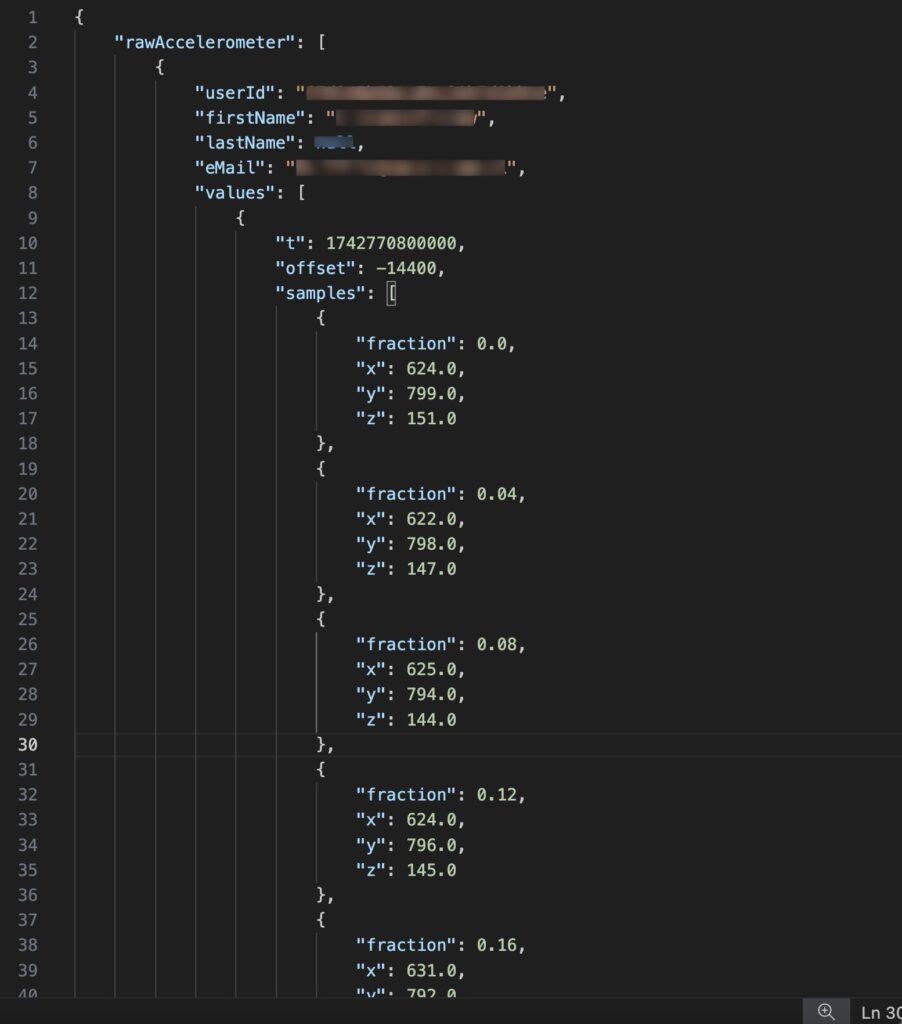
Accelerometer
- Measures acceleration along 3 orthogonal axes (x, y and z).
- The output is milli-g units.
- Resolution is fixed at 25Hz (i.e. 25 measurements per second). Garmin wearables do not support adjusting this resolution.
- Recording is 24/7. It is not possible to schedule or start/stop recording.
- Each user will produce 2.16 Mio. measurements per day.
- Accelerometer data generates approx. 562.5KB/hour (13.18MB/day).
- Data export is only available as csv or json file format. XLS is not support as MS Excel cannot open such large amounts of data. You need a code/text editor.
- Fluctuations in recording frequency may occur and are normal due to error tolerances of the hardware.
Gyroscope
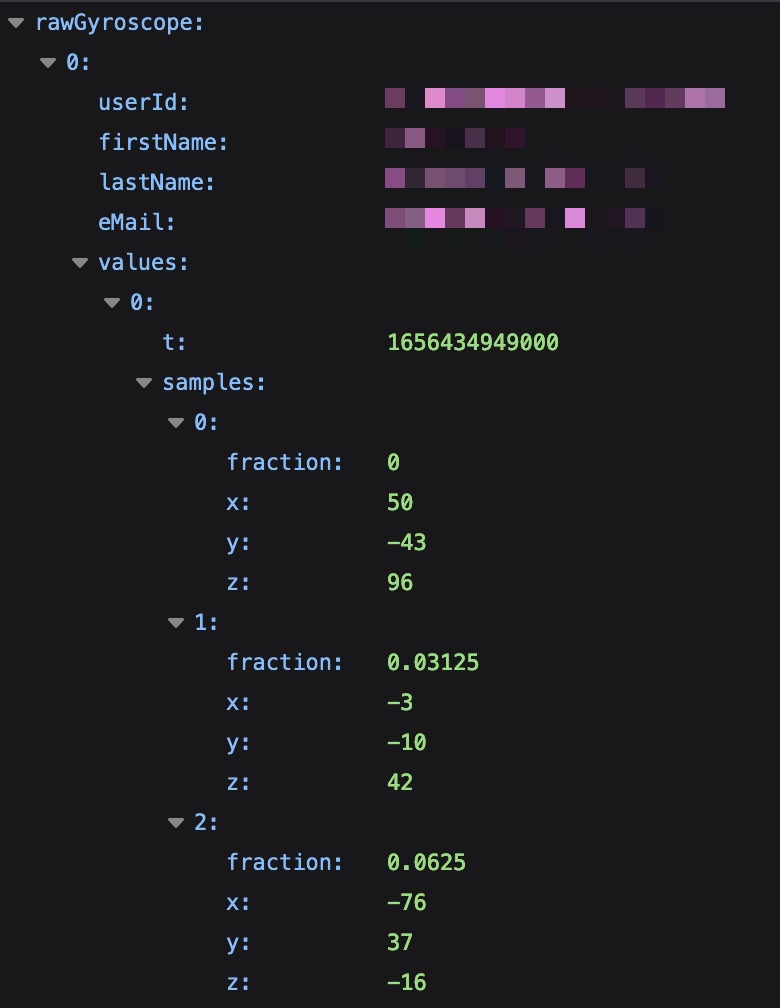
- Measures angular velocity along 3 orthogonal axes x, y and z.
- The output is degrees/second.
- Resolution is fixed at 32Hz (i.e. 32 measurements per second). Garmin wearables do not support adjusting this resolution.
- Recording is 24/7. It is not possible to schedule or start/stop recording.
- Each user will produce 2.76 Mio. measurements per day.
- Accelerometer data generates approx. 720KB/hour (16.87MB/day).
- Data export is only available as csv or json file format. XLS is not support as MS Excel cannot open such large amounts of data. You need a code/text editor.
- Fluctuations in recording frequency may occur and are normal due to error tolerances of the hardware.
Sync Process
Fitrockr offers three sync processes for Accelerometer & Gyroscope data:
USB Sync (recommended): data is manually extracted via USB cable. This sync method can easily cope with large data amounts produced by Accelerometer & Gyroscope. See further details at Sync via USB cable to Laptop.
Wifi Sync (recommended): data is manually extracted via USB cable.This sync method can easily cope with large data amounts produced by Accelerometer & Gyroscope.
Bluetooth Sync (use with caution!): the Bluetooth protocol is not designed to synchronize large amounts of data. If accelerometer data is not synchronized multiple times per day (ideally every 1–2 hours), the Bluetooth connection may become overloaded and stop synchronizing data from the wearable. In this case, the wearable synchronization may crash and stop working completely.
The only ways to recover is a manual data extraction via USB cable or a factory reset of the wearable. Please note that a factory reset will result in the loss of all data stored on the device.
The Fitrockr app supports background synchronization of wearables, typically approximately once per hour. In theory, this allows large amounts of data to be synchronized via Bluetooth. However, if a user misplaces or is separated from their smartphone for several hours, synchronization may not take place. As a result, the wearable may accumulate too much data and become overloaded, potentially preventing any further synchronization.
Use Bluetooth sync for Accelerometer or Gyroscope data at your own risk!
Data Download
If you are collecting large amounts of Accelerometer or Gyroscope data, you will not be able to export and download these data types like all others via ANALYZE > DATA EXPORT (see Analyze: Data Export).
Instead, data will be available for download via an FTP server. This server can comfortably be accessed in Fitrockr via the top right navigation. Full Admin User role required.
Your data will be grouped into logical downloads (e.g. by projects and calendar months) as CSV and JSON. Each download will contain all users within the calendar month. It will not be possible to individually select users, groups or timeframes to download like for other data such as heart rate, steps, sleep, etc. Instead, you have to download the full month file and then extract data for selected users yourself.
Expect a file containing 100 users to be of 20-30GB size, resulting in an unzipped size of 450-500GB.

Please note that data will not be available immediately after each sync. It will be processed in batches.